Posts

GET THE WEB API URL FOR A DYNAMICS 365 ORGANIZATION
Image
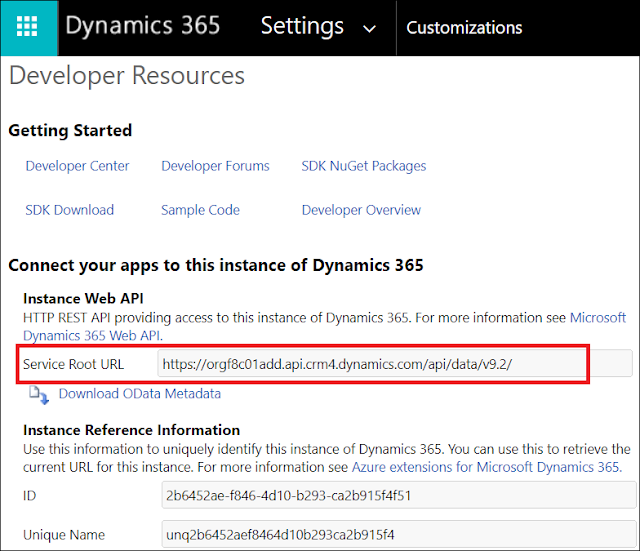
In this quick post, we will see how to get the Web API URL for the Dynamics 365 organization . Go to Settings > Customizations > Developer Resources In the Service Root URL, you will find the API URL You can copy this URL and paste it into a browser to get its result Based on your needs, you can get and use the WebAPI URL in JavaScript using the following line of code formContext.context.getClientUrl() + "/api/data/v9.2/ Hope This Helps!

DUPLICATED WORKFLOWS IN DYNAMICS 365 ADVANCED FIND

Image
In this quick post, I'm gonna share a finding about workflows where you will see Duplicated workflows in the Advanced Find result . Open the Advanced Find and search for a specific process, you will get the result with multiple records with the same name; however, if you go to the All Processes view , you will not find these duplicated records Well, these records are not duplicated records of the workflows. So what are they and how they are created? Each time you deactivate and than reactivate a workflow, a new record will be created with Status Draft , which indicates that a reactivation has been done for the workflow If the workflow is deactivated, the status of all the workflow instances returned in the Advanced Find will be Draft If the workflow is activated, only two...

ERROR DIALOG IN DYNAMICS 365 JAVASCRIPT

Image
In another posts, we saw how to display a Confirm Dialog in Dynamics 365 using JavaScript and how to display an Alert Dialog in Dynamics 365 using JavaScript In this post, we will see how to display an Error Dialog in Dynamics 365 using JavaScript and what are the different properties that can be set. The error dialog will be used to display an error message on the form errorOptions Contains the different dialog display properties: details Contains details about the error. If specified, the user will be able to click the button Download Log File to download a text file that contains the message specified in this op...

ALERT DIALOG IN DYNAMICS 365 JAVASCRIPT

Image
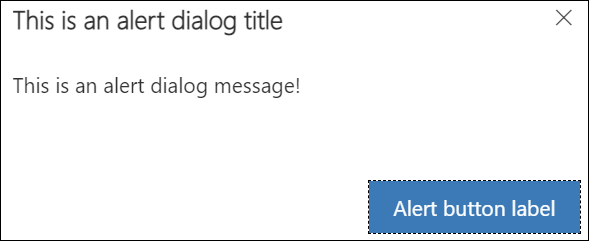
In another post, we saw how to display a Confirm Dialog in Dynamics 365 using JavaScript In this post, we will see how to display an Alert Dialog in Dynamics 365 using JavaScript and what are the different properties that can be set. The alert dialog will be used to display an alert dialog containing a message and a button alertStrings Contains the different dialog display properties: confirmButtonLabel Contains the value that will be displayed for the alert button in the alert dialog. By default it is set to Ok . title Contains the value of the Title that will be displayed in the aler...

CONFIRM DIALOG IN DYNAMICS 365 JAVASCRIPT

Image
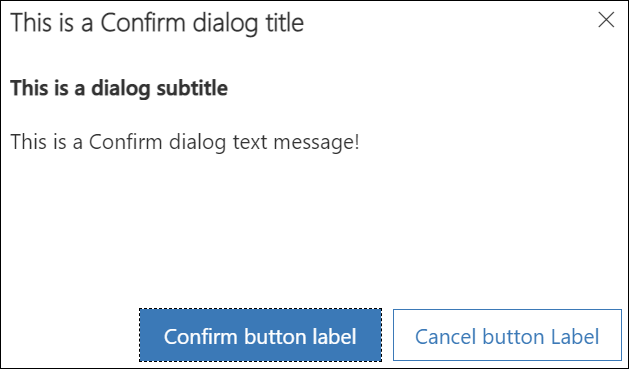
In another post, we saw how to display an Alert Dialog in Dynamics 365 using JavaScript In this post, we will see how to display a Confirm Dialog in Dynamics 365 using JavaScript and what are the different properties that can be set. The confirm dialog will be used to display a confirmation dialog containing a message and two button. This dialog will have the below different options confirmStrings Contains the different dialog display properties: confirmButtonLabel Contains the value that will be displayed for the confirm button in the confirmation dialog. By default it is set to Ok . cancelButtonLabel ...

CREATE OR UPDATE (UPSERT) RECORDS USING ALTERNATE KEYS IN DYNAMICS 365 SDK

In another post, we saw how to retrieve a record based on alternate key in Dynamics 365 using the SDK In this post, we will see how to create or update (upsert) a record based on alternate key in Dynamics 365 using the SDK . The below sample code can be used to achieve the UpdateRequest. For the sake of this post, the alternate key is set up on the Account Name (name) field of the account entity. public void UpsertRecordByKey() { KeyAttributeCollection keys = new KeyAttributeCollection { { Account.Fields.Name, "cak account" } }; Account objAccount = new Account(); objAccount.Name = "cak account"; Upse...

RETRIEVE RECORDS USING ALTERNATE KEYS IN DYNAMICS 365 SDK

Image
With Dynamics 365 SDK, you can retrieve a single record by its GUID using the Retrieve method, but, what if you don't have the GUID of the record ? Another approach is to retrieve the record by its alternative keys. However, you cannot use the Retrieve method to do this because it does not have any option to pass the alternate key value. This approach will need the RetrieveRequest to be done. In another post, we saw how to create or update (upsert) a record based on alternate key in Dynamics 365 using the SDK Below, is a sample code on how to retrieve a record based on alternate key in Dynamics 365 using the SDK . For the sake of this post, the alternate key is set up on the Account Name (name) field of the account entity. public void RetrieveRecordB...

CONVERT QUERYEXPRESSION TO FETCHXML AND VICE-VERSA IN DYNAMICS 365

Image
In this quick post, we will see how to convert Query Expression to FetchXML and how to convert FetchXML to Query Expression in Dynamics 365 . QUERY EXPRESSION TO FECTH XML The below function can be used to convert a Query Expression into Fetch Xml query public void ConvertQueryExpressionToFetchXml() { List<Account> lstAccounts = new List<Account>(); QueryExpression qeQuery = new QueryExpression(Account.EntityLogicalName) { ColumnSet = new ColumnSet(Account.Fields.Id), Criteria = new FilterExpression() { FilterOperator = LogicalOperator.And, Conditions = { new ConditionExpression(Account.Fields.StateCod...

DYNAMICS 365 POWER PANE BROWSER EXTENSION

Image
In another series of posts ( Part 1 , Part 2 , Part 3 ), we saw a list of advanced actions that can be performed by the users using the browser extension Level up for Dynamics 365/Power Apps . In this post, we will see another browser extension which is the Dynamics 365 Power Pane and what actions can be done with it. GENERAL USER INFO This option will show some info about the current user such as User Name, what roles the user has, etc... ...

DYNAMICS 365 LEVEL UP BROWSER EXTENSION - PART 3

Image
In another posts, we saw what actions can be done in the Forms and Navigation sections of DYNAMICS 365 LEVEL UP BROWSER EXTENSION In this post, we will see the other actions that can be done in the Dynamics 365 Level up Browser Extension . VIEW NEW WINDOW This option will display the current system/personal view in a new window QUICK FIND FIELDS This option will display the search fields of the quick find view for the current entity ...

DYNAMICS 365 LEVEL UP BROWSER EXTENSION - PART 2 - NAVIGATION

Image
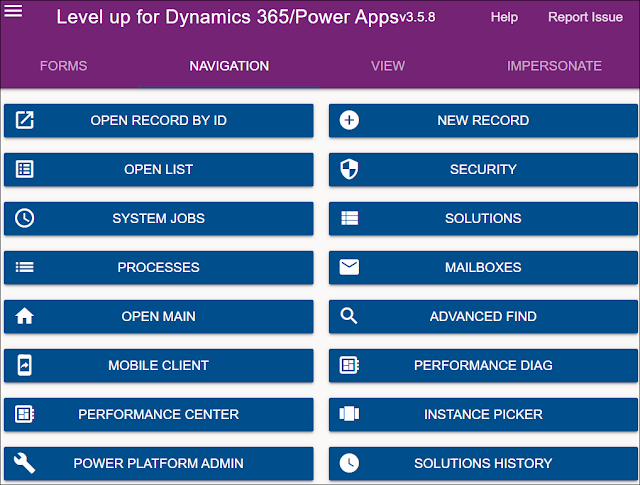
In another post, we saw what actions can be done in the Forms section of DYNAMICS 365 LEVEL UP BROWSER EXTENSION In this post, we will see what actions can be done in the Navigation section of the Dynamics 365 Level up Browser Extension . OPEN RECORD BY ID This option will open a record in a new tab based on the entity logical name and record GUID you enter NEW RECORD This option will open a new record form in a new tab based on the entity logical name you enter OPEN LIST This option will open the list view page of ...