Posts

HOW TO USE TOGGLE CONTROL FOR TWO OPTIONS FIELDS
Image
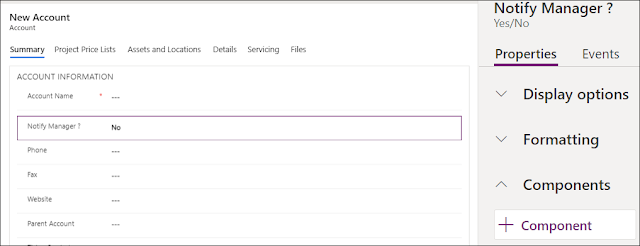
In this post, I will talk about how to use the Toggle control for better display in order to optimize and increment user-friendliness of the system. This control can be used with two options type fields. Therefore, to add the Toggle control on the form, you need to add a two options field on the form. Under the field's properties, in the Component section, click the + sign to Add a new control From the list, select Toggle control Check where you want to show this control, and click Done Once published, you can see the result on the form For more user experience and enhancements ideas, you can check this link for some custom controls that can be used like: ...
HOW DOES NUMBER INPUT AND STAR RATING CONTROLS WORK IN DYNAMICS 365

Image
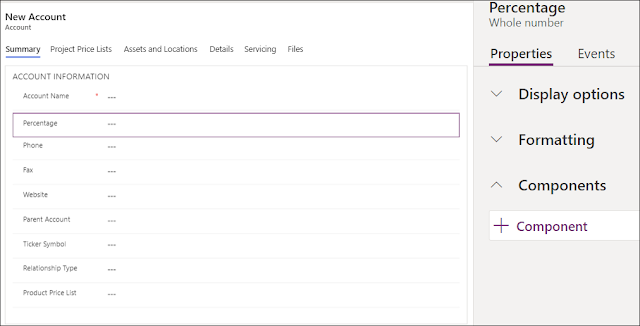
In order to optimize and increment user adoption and interaction, it is recommended to bring some of the optimized and available controls into the system. This way, the users will have more user-friendly interface to deal with. Therefore, using the custom controls is highly recommended to achieve this. In this post, we will have a look at how to use Number input control and Star rating control with numeric data types like number , currency , decimal . To add the Input Number control on the form, you need to add a numeric field Under the field's properties, in the Component section, click the + sign to Add a new control From the list, select Number Input control In the Step, set the number you wish to add or subtract...

DYNAMICS 365 OPTION SET FIELD CONTROL

Image
Every customer wants to have a user friendly interface and easy-to-use system in order to help the users to be more productive and effective in their daily work. Providing a good user experience will increase the chances of meeting these goals. In this post, I will talk about enhancing the user experience for option sets fields on the form by using the Option Set control . In the below steps, you will see how to enable the Option Set Control and how the result is going to be displayed on the form. In the form, open the option set field properties Click the Controls tab > Add control In the list of controls, select Option Set and click Add Save and Publish the form You can now see the Option Set Control in action on the form ...

HOW TO ADD AND USE RICH TEXT EDITOR IN DYNAMICS 365 FORM

Image
What is a  Rich Text Editor control ? A Rich Text Editor control will allow you to enter formatted text and the ability to include images with minor effort where the input/output is HTML. It will enhance the user experience and increase productivity. The below steps will show you how to enable the Rich Text Editor control for multiline text fields in Dynamics 365 form. In the form customizations, open the properties of a multiline text field Go to Controls tab > Add control Scroll down, and select Rich Text Editor Control Click OK, Save, then publish Once published, the user can now format the text in the field and add images as well ...

PORTAL USER LAST LOGIN DATE AND TIME

Image
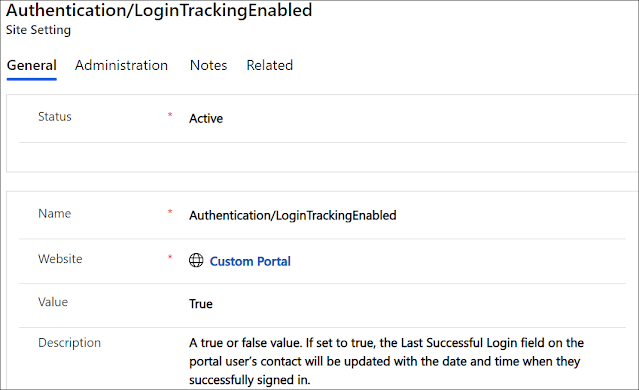
Many clients wish to have a look on how their systems are performing and especially the ones facing the end users, therefore, they sometimes need to track the peak time when the users are connected to their systems to do some statistics, analysis, and take actions based on the data collected. The same applies to the PowerApps portal which is our topic in this post, where I will show you how to get the user last login date to the portal . As you know, users that connect to the portal, are saved in the Dynamics 365 as contact records, and to save the last login date to the portal, a new date/time field named Last Successful Login will be created in the contact entity during the portal provisioning. In order to fill this field by the appropriate date time when a portal user has logged in, a setting should be set and enabled Open the portal settings entity ...

HOW TO ENABLE AUTO COMPLETE CONTROL IN DYNAMICS 365 FORM

Image
The data existing in D365 application represents the most important thing to any customer, and all of us are helping clients to better use and improve the data entry to be more consistent and cleaner as much as possible. Most fields allow users to enter specific type/format of data, for example, an option set field will provide a list of items to select between them, the lookup field will provide data from another entity, the number field will limit the data to be numeric.... However, the main concern will be on the text fields where the users can enter any info and save it. Here, the data might start to become inconsistent and can lead to erroneous outcome in some scenarios. Therefore, in order to maintain the consistency of data entered in the text fields especially for the ones that present sensitive info to the business, you can add the Auto-complete control where it will start giving suggestions and ...

DYNAMICS 365 IMPORT WIZARD ERROR WHEN UPDATING RECORDS

Image
In this quick post, I will talk about an issue you might face during import wizard of a csv file in order to update some data in Dynamics 365. PROBLEM The following error message appears during import wizard of the csv file A record with these values already exists. A duplicate record cannot be created. select one or more unique values and try again. REASON After exporting the Excel file, it has been saved as a csv file which has been selected for the import to update the records SOLUTION You need to make the needed changes on the exported Excel file and import it without changing its type to csv. It will update the needed records with the new data Hope This Helps!

DYNAMICS 365 HOW TO SET DATE FIELD IN APP FOR OUTLOOK

PROBLEM You might have faced the following script error when setting a Date field in CRM App for Outlook in JavaScript using the method formContext.getAttribute("<fieldName>").setValue(Date.now()); Error: Value should be of type: DateTime at h (https://<crmurl>/uclient/scripts/app.js?v=1.3.163-201103-224104:12:164) at b (https://<crmurl>/uclient/scripts/app.js?v=1.3.163-201103-224104:12:327) at t.prototype.setValue (https://<crmurl>/uclient/scripts/0.js?v =1.3.163-201103-224104:209:21956) at setDateReceptionField (Unknown script code:561:13) at e.prototype.executeFunction (https://<crmurl>/uclient/scripts/app.js?v=1.3.163-201103-224104:1659:50881) at e.prototype.execute (https://<crmurl>/uclient/scripts/app.js?v =1.3.163-201103-224104:1659:50686) at e.prototype._executeIndividualEvent (https://...

DYNAMICS 365 SHOW HIDE TIME PART OF DATETIME IN JAVASCRIPT

Image
Have you faced a situation where you wanted to conditionally show/hide the time part of a date-time field on a form? After upgrading from D365 V8.2 to D365 V9 (9.0.16.7) on-premises, there is abnormal white space around the ribbon buttons . This behavior was everywhere whether in the views, forms or other areas. You can do it using the ClientAPI JavaScript function formContext.getControl("<datetimefieldname>").setShowTime(true); to show the time part Or formContext.getControl("<datetimefieldname>").setShowTime(false); to hide the time part Bonus Tips: In addition to setting the visibility of the time part, you can get whether the time part is ...

DYNAMICS 365 HOW TO SHOW HIDE FORM HEADER AND FOOTER

Image
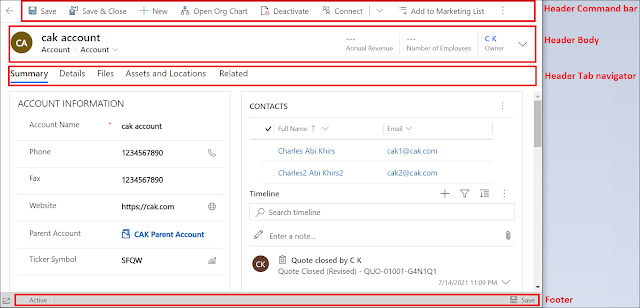
Some of you know that it is possible to show/hide the header and footer of the form using Client API. Sometimes, you need to have more space to show additional data on the form or the client simply request to hide some parts of the header. Here comes the utility of hiding the header or footer elements of the form. The header is divided into three parts : Command bar , Body , and Tab navigator as per the following. In order to dynamically control the visibility of each part, you can call the following functions: Header command bar visibility Hide : formContext.ui.headerSection.setCommandBarVisible(false); Show : formContext.ui.headerSection.setCommandBarVisible(true); Header body visibility ...

DYNAMICS 365 HOW TO CHANGE SUBGRID SELECTED VIEW IN JAVASCRIPT

Image
In other posts, we saw how to refresh a subgrid and how to filter a subgrid in JavaScript. In this post, we will see how to change the view selected for the subgrid in JavaScript . You can use this each time you need to display different columns in a sub grid based on a field value on the form because showing/hiding a column in a sub grid is not possible. Go to the entity form and open the form or field properties where you want to call the JavaScript function Under the Events tab, add the appropriate event handler and call the function that will change the subgrid view Save and Publish the form As outlined in the below JavaScript function, use the setCurrentView function to change the subgrid view . func...

HOW TO CHANGE BUSINESS PROCESS FLOW (BPF) STAGE IN JAVASCRIPT

Image
In this previous post , we saw how to register and call event handlers related to the BPF . In this post, we will see how to change the Business Process Flow (BPF) stage in JavaScript that will be directly reflected in the UI. In order to achieve this, you have to use the functions formContext.data.process.moveNext() and formContext.data.process.movePrevious() so you can move the stage back and forth in the active BPF of the form. Go to the entity form and open the form or field properties where you want to call the JavaScript function Under the Events tab, add the appropriate event handler and call the function that will change the BPF stage Save and Publish the form As outlined in the below JavaScript function, use the moveNext or movePrevious functions ...

DYNAMICS 365 DATA IMPORT WIZARD ERROR

In this quick post, I will talk about an issue you might face if you want to import data using data import wizard upon selecting the file you want to import on Dynamics 365 V9 on premises. Note: This error does not appear on the online version The Problem The following error message appears when you select the file you want to import The records were not updated because the following Microsoft Dynamics CRM fields were not found : <column name> The Reason Two fields in the entity you are trying to import the records to, have the same display name The Solution Change the display name of one of the fields in order to fix this problem and run the import wizard again Hope This Helps!

DYNAMICS 365 CUMULATIVE UPDATE INSTALLATION FAILED WITH ERROR

Usually, installing a cumulative update for Dynamics 365 on premises is easy and does not require deep expertise in order to achieve it. However, you might face errors as happened the last day with one of my colleagues. PROBLEM He informed me that he is not able to install the cumulative update (9.0.23.7) of D365 on premises on one organization. While, he was able to do it on another and both organizations are on the same development server. Therefore, I got the error log and the trace is the following (kept only the interesting part): System.Exception: Error.ActionFailed Microsoft.Crm.Tools.Admin.InstallDatabaseUpdatesAction ---> Microsoft.Crm.CrmException: Error in Action: Microsoft.Crm.SE.DatabaseActions.dll: Execute on attempt 3. System.Reflection.TargetInvocationException : An exception was thrown by the target of a call. ---> Microsoft.Crm.CrmExcepti...

DYNAMICS 365 HOW TO FILTER SUBGRID IN JAVASCRIPT

Image
In other posts, we saw how to change the selected view of a subgrid and how to refresh a subgrid in JavaScript. In this post, I will talk about how to filter a subgrid using JavaScript in Dynamics 365 and display the needed records . For the sake of this post, I will take the example of an account record and its related cases that are displayed in a sub-grid component. In the account record, a field called Case Type that contains three options (Problem, Question, Request) Based on the case type selected, the sub-grid should be filtered and show the appropriate cases records To apply a filter on the subgrid, a fetchXml needs to be injected in the sub-grid and filtered based on the case type selected Therefore, go to the Case for...