Posts

DYNAMICS 365 CUMULATIVE UPDATE INSTALLATION FAILED WITH ERROR

Usually, installing a cumulative update for Dynamics 365 on premises is easy and does not require deep expertise in order to achieve it. However, you might face errors as happened the last day with one of my colleagues. PROBLEM He informed me that he is not able to install the cumulative update (9.0.23.7) of D365 on premises on one organization. While, he was able to do it on another and both organizations are on the same development server. Therefore, I got the error log and the trace is the following (kept only the interesting part): System.Exception: Error.ActionFailed Microsoft.Crm.Tools.Admin.InstallDatabaseUpdatesAction ---> Microsoft.Crm.CrmException: Error in Action: Microsoft.Crm.SE.DatabaseActions.dll: Execute on attempt 3. System.Reflection.TargetInvocationException : An exception was thrown by the target of a call. ---> Microsoft.Crm.CrmExcepti...

DYNAMICS 365 HOW TO FILTER SUBGRID IN JAVASCRIPT

Image
In other posts, we saw how to change the selected view of a subgrid and how to refresh a subgrid in JavaScript. In this post, I will talk about how to filter a subgrid using JavaScript in Dynamics 365 and display the needed records . For the sake of this post, I will take the example of an account record and its related cases that are displayed in a sub-grid component. In the account record, a field called Case Type that contains three options (Problem, Question, Request) Based on the case type selected, the sub-grid should be filtered and show the appropriate cases records To apply a filter on the subgrid, a fetchXml needs to be injected in the sub-grid and filtered based on the case type selected Therefore, go to the Case for...

DYNAMICS 365 HOW TO REFRESH SUBGRID IN JAVASCRIPT

Image
In other posts, we saw how to change the selected view of a subgrid and how to filter subgrid in JavaScript. In this post, we will see how to refresh a subgrid in JavaScript in order to show the latest records related to a parent record upon an action on the form or clicking a ribbon button. For the sake of this post, I will take the example of the cases subgrid related to an account record. Let's take the scenario, where an action is done on the client side that adds a case related to the account record. Therefore, the sub-grid should be automatically refreshed to reflect the updated list of cases. In order to do this, a JavaScript function should call the refresh() in order to refresh the subgrid and display the expected result. function refreshSubGrid(context) { var formContext = context.getFormContext(); ...

DYNAMICS 365 HOW TO RETRIEVE AND EXECUTE PREDEFINED QUERIES

As you know, System views are available to all users, while, the Personal views are available to only the users who created them and the users these views are shared with. Both of these are called Predefined queries and can be retrieved and executed using WebAPI. System views are the system defined views and are contained in the entity named SavedQuery Personal views are the personal views and are contained in the entity named UserQuery You can use the following WebAPI calls to execute the predefined queries: System views : https://<OrgUrl>/api/data/v9.0/account?savedQuery=<SystemViewId> Personal views : https://<OrgUrl>/api/data/v9.0/account?userQuery=<PersonalViewId> To get the...

LIMITATION NUMBER OF ALLOWED LINK ENTITY IN QUERY

Image
In this quick post, I will talk about a limitation you might face when working in D365 CE which is exceeding the maximum number of link entities in a query . The exception message that you will receive is the following: Error : Number of link entities in query exceeded maximum limit. where the maximum number of link entities is 10. You get this error in different scenarios In a view when you add fields of more than 10 related entities because they are reflected as link entities with outer join to the main entity <OrganizationServiceFault xmlns:i="http://www.w3.org/2001/XMLSchema-instance" xmlns="http://schemas.microsoft.com/xrm/2011/Contracts">......... <Message> Invalid FetchXml on SavedQuery.Update. </Message>......... ...

DYNAMICS 365 HOW TO DYNAMICALLY GET THE FIELD NAME THAT TRIGGERED EVENT ON FORM

Let's take the scenario, where a user has to choose Department 1, Department 2 and Department 3 on a form for escalation purpose. Each department has its own enabled and required fields where a user in the department has to fill before saving. In this situation, when you have multiple attributes on the form that operate similarly, and if needed, as a best practice, they should fire the same JavaScript function. In order to achieve this, you need to dynamically get the attribute name of the field being changed ( source of the event ) in the function to know which dependent fields should be enabled and set as required. Here comes the role of the getEventSource() function by calling it as follows formContext.getEventSource().getName(); that will retrieve the schema name of the field being changed, and this way, you can achieve some work based on it as per the below function. ...

DYNAMICS 365 REFERENCE PANEL

Image
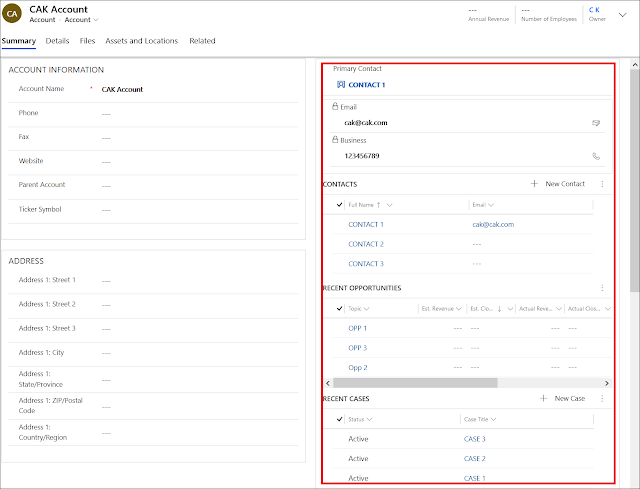
Dynamics 365 product team is always working to improve and give the best user experience. Therefore, the continuous evolutions of the different areas and possibilities are one of the most critical things to bring. In this post, I will talk about one of these user experience improvements which is Reference Panel that was introduced with the Dynamics 365 V9. So what is exactly a Reference Panel? The Reference Panel is a type of section that can be added to the form that allows users to move across different types of sub grids and quick view controls in a single place without scrolling down or up. Let's take the example of the account form, where many quick view forms and sub grids exist inside (contacts, recent cases and opportunities...). When the users enter the form, they have to scroll up and down through the form in order to check the sub grids and their data which is sometimes annoying for them. ...

DYNAMICS 365 HOW TO SHOW GLOBAL NOTIFICATION FROM ENTITY VIEW

Image
In this previous post , I described how to show a global notification in the model-driven app from within an event handler on the form and we saw the different options and possibilities that we can do with this functionality. In this post, I will show you how to display a notification from any entity view instead of the form level. For example, if you want to show the number of pending tasks to the user or the number of opened opportunities that should be closed and maybe allow the user to click the action button and be redirected to the appropriate screen. Let's see how! First, create a new solution and add the Application ribbon component in it From the Ribbon Workbench, open the solution Scroll to the right, and add a new button under the Home menu in Mscrm.Hom...

DYNAMICS 365 HOW TO SHOW GLOBAL NOTIFICATION IN MODEL DRIVEN APP

Image
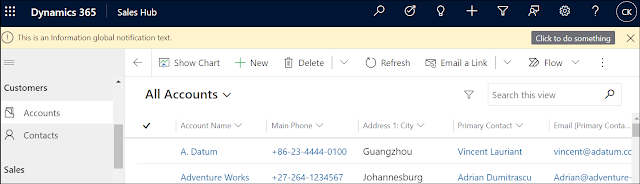
The function setFormNotification() is used to display a notification message as information, warning or error message on the form and it lives within the form itself. Once you navigate outside the form, the notification will be gone. In other post , I described how to show a global notification from an entity view. However, in this post, I will show you how to display a global notification that will be displayed across the Model driven App and not limited to the form. To do this, you can use the function Xrm.App.addGlobalNotification(objNotification).then(success,error) that will display a warning, error, informational, or success message. In addition, it will give the user the possibility to close the notification and perform a specific action that will be executed based on the notification. To implement this, you can call the function that disp...

DYNAMICS 365 BLANK SUBGRID IN QUICK VIEW

Image
In this quick post, I will describe a strange issue I have faced on CRM on-premises V9 in a quick view with a sub-grid component in it. Most of you have worked with quick views and you know that you can add a sub grid in it to display records related to a specific record selected in a lookup field. PROBLEM When a lookup field is selected and its related quick view has appeared, the sub-grid existing in the quick view is blank and never loads as displayed in the below screenshot. REASON The tab containing the quick view with a sub-grid is collapsed by default SOLUTION Put the tab as expanded by default, and after save and publish, the sub-grid in the quick view is properly shown. Hope This Helps!

DYNAMICS 365 V9 ON PREMISE WHITE SPACE IN RIBBON BUTTONS

Image
In this quick post, I will talk about a display issue of the ribbon buttons. After upgrading from D365 V8.2 to D365 V9 (9.0.16.7) on-premises, there is abnormal white space around the ribbon buttons . This behavior was everywhere whether in the views, forms or other areas. Opening the interface in different browsers have the same behavior; therefore, it is not a browser issue. When opening the Ribbon Workbench, the buttons are properly displayed without any white space. The last try is to apply the latest update of the D36 V9 on premises, and after it is completed, the buttons are properly displayed and no white spaces exist anymore. Hope This Helps!

DYNAMICS 365 BUSINESS RULES LIMITATION WITH MULTISELECT OPTION SET FIELD

Image
Since the introduction of the Business Rules as a new functionality in Dynamics 365, it becomes the recommended way to be leveraged against writing client-side code whenever it is possible. By using this approach, it will become more maintainable and supportable for further upgrades of the environment and will reduce time spent on code management and compatibility before/after the updates. However, there are situations where you cannot fully apply your needs in a Business Rules due to the complexity of the need or limitation in the Business Rules. Therefore, you have to get back again to JavaScript. In this post, I will talk about one of those limitations in Business Rules which is related to Multiselect option set fields . Unfortunately, when you have a multiselect option set field, you cannot use it as part of the Business Rule condition or within the available actions, even if you wan...

REGISTER AND CALL EVENT HANDLERS FOR BUSINESS PROCESS FLOWS (BPF)

In this post, I will mention some of the events that are used against Business Process Flows . Even though these events are executed from the form context, but, they are not registered directly from the form editor like On Load, On Save, On Change events. Instead, these events can be registered and called from the JavaScript while loading the form in the OnLoad event of the form. Below are some of the BPF events that can be registered: OnPreProcessStatusChange : This function will be executed before the BPF status changes and can be called as follow formContext.data.process.addOnPreProcessStatusChange(functionName) OnPreStageChange : This function will be executed before the BPF stage changes and can be called as follow formContext.data.process.addOnPreStageChange(functionName) OnProcessStatusChang...

DYNAMICS 365 HOW TO DEBUG PLUGINS USING REMOTE DEBUGGER

Image
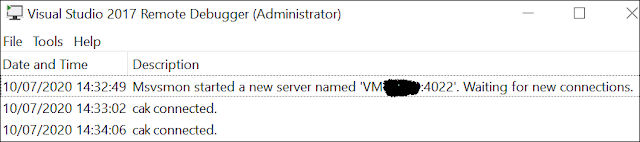
In another post , we saw how to debug a plugin using Profiler and highlighted a downside of this method which will not give you a real-time state of the Dynamics 365 database you are working on. However, in this post, I will show you how to debug a plugin in real-time of the execution of the plugin itself using the Visual Studio remote debugger tool . This method will only work for On-premises environments since you should install and run the tool on the CRM server. The below steps will teach you how to debug the plugins First things first, you have to download the remote debugger tool using this link based on the Visual Studio version you are working with Once the download is done, copy the installer on the CRM server and double click to install it ...

DYNAMICS 365 DISPLAY LOADING PROGRESS INDICATOR ON FORM

Image
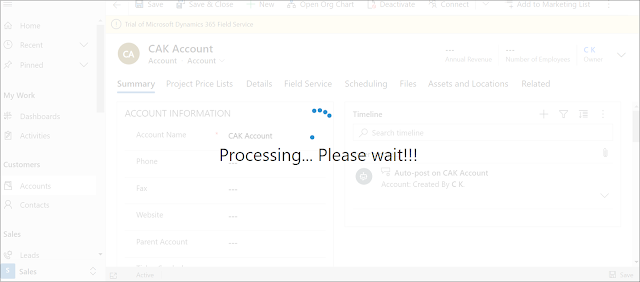
Most probably, you have faced a scenario where you need to block the user from interacting with the form and you want him to wait a little bit until a process is completed and then he can work again on the form. However, blocking the user from working without informing him that something in the background is being processed is not a pretty thing to do. Therefore, and to avoid this misunderstanding, you can display a loading dialog to inform him of this behavior, so he knows that he should wait a little bit before resuming the work on the form. To achieve this, there is a straight forward method to do it, which is by using the Xrm.Utility.showProgressIndicator("Processing... Please wait!!!") method in the JavaScript. You can add this line of code in any function, where you want to block the user from interacting with the interface while you are waiting for a process to be completed. Once the pro...