Posts

DYNAMICS 365 BLANK SUBGRID IN QUICK VIEW
Image
In this quick post, I will describe a strange issue I have faced on CRM on-premises V9 in a quick view with a sub-grid component in it. Most of you have worked with quick views and you know that you can add a sub grid in it to display records related to a specific record selected in a lookup field. PROBLEM When a lookup field is selected and its related quick view has appeared, the sub-grid existing in the quick view is blank and never loads as displayed in the below screenshot. REASON The tab containing the quick view with a sub-grid is collapsed by default SOLUTION Put the tab as expanded by default, and after save and publish, the sub-grid in the quick view is properly shown. Hope This Helps!

DYNAMICS 365 V9 ON PREMISE WHITE SPACE IN RIBBON BUTTONS

Image
In this quick post, I will talk about a display issue of the ribbon buttons. After upgrading from D365 V8.2 to D365 V9 (9.0.16.7) on-premises, there is abnormal white space around the ribbon buttons . This behavior was everywhere whether in the views, forms or other areas. Opening the interface in different browsers have the same behavior; therefore, it is not a browser issue. When opening the Ribbon Workbench, the buttons are properly displayed without any white space. The last try is to apply the latest update of the D36 V9 on premises, and after it is completed, the buttons are properly displayed and no white spaces exist anymore. Hope This Helps!

DYNAMICS 365 BUSINESS RULES LIMITATION WITH MULTISELECT OPTION SET FIELD

Image
Since the introduction of the Business Rules as a new functionality in Dynamics 365, it becomes the recommended way to be leveraged against writing client-side code whenever it is possible. By using this approach, it will become more maintainable and supportable for further upgrades of the environment and will reduce time spent on code management and compatibility before/after the updates. However, there are situations where you cannot fully apply your needs in a Business Rules due to the complexity of the need or limitation in the Business Rules. Therefore, you have to get back again to JavaScript. In this post, I will talk about one of those limitations in Business Rules which is related to Multiselect option set fields . Unfortunately, when you have a multiselect option set field, you cannot use it as part of the Business Rule condition or within the available actions, even if you wan...

REGISTER AND CALL EVENT HANDLERS FOR BUSINESS PROCESS FLOWS (BPF)

In this post, I will mention some of the events that are used against Business Process Flows . Even though these events are executed from the form context, but, they are not registered directly from the form editor like On Load, On Save, On Change events. Instead, these events can be registered and called from the JavaScript while loading the form in the OnLoad event of the form. Below are some of the BPF events that can be registered: OnPreProcessStatusChange : This function will be executed before the BPF status changes and can be called as follow formContext.data.process.addOnPreProcessStatusChange(functionName) OnPreStageChange : This function will be executed before the BPF stage changes and can be called as follow formContext.data.process.addOnPreStageChange(functionName) OnProcessStatusChang...

DYNAMICS 365 HOW TO DEBUG PLUGINS USING REMOTE DEBUGGER

Image
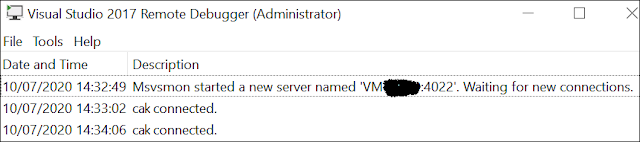
In another post , we saw how to debug a plugin using Profiler and highlighted a downside of this method which will not give you a real-time state of the Dynamics 365 database you are working on. However, in this post, I will show you how to debug a plugin in real-time of the execution of the plugin itself using the Visual Studio remote debugger tool . This method will only work for On-premises environments since you should install and run the tool on the CRM server. The below steps will teach you how to debug the plugins First things first, you have to download the remote debugger tool using this link based on the Visual Studio version you are working with Once the download is done, copy the installer on the CRM server and double click to install it ...

DYNAMICS 365 DISPLAY LOADING PROGRESS INDICATOR ON FORM

Image
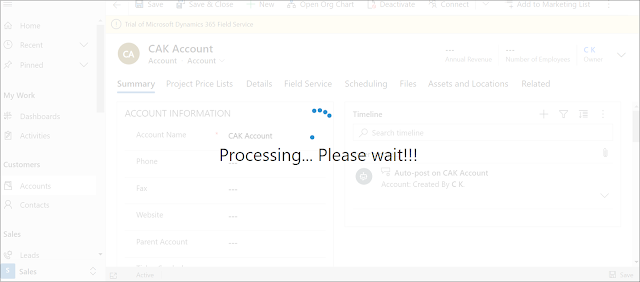
Most probably, you have faced a scenario where you need to block the user from interacting with the form and you want him to wait a little bit until a process is completed and then he can work again on the form. However, blocking the user from working without informing him that something in the background is being processed is not a pretty thing to do. Therefore, and to avoid this misunderstanding, you can display a loading dialog to inform him of this behavior, so he knows that he should wait a little bit before resuming the work on the form. To achieve this, there is a straight forward method to do it, which is by using the Xrm.Utility.showProgressIndicator("Processing... Please wait!!!") method in the JavaScript. You can add this line of code in any function, where you want to block the user from interacting with the interface while you are waiting for a process to be completed. Once the pro...

DYNAMICS 365 HOW TO ADD AND USE NAMESPACE IN JAVASCRIPT

Image
In this previous post, we have learned how to create, structure and organize the Dynamics 365 Web Resources files . In this post, we will learn how to add and use namespace in Dynamics 365 JavaScript web resource and how to call the functions. In the JavaScript web resource, add your specific namespace as per the below code var CAKBlog = CAKBlog || {}; //Create CAKBlog namespace CAKBlog.Form = CAKBlog.Form || {}; //Create CAKBlog.Form namespace CAKBlog.Form.Account = function () { //Create CAKBlog.Form.Account namespace //Functions are added here }(); Add your functions' logic inside, noting that these functions are private and cannot be directly called CAKBlog.Fo...

DYNAMICS 365 HOW TO FIX SECTION OVERLAPPING OTHER SECTION IN FORM

PROBLEM Last day, I was working with D365 V9 on-premise and I have encountered a weird issue where a section was overlapping on another section side by side. It was very strange since all the fields in this section are having the same behavior. The special thing about this section is, that it contains many html web resources and other fields that are being hidden using JavaScript, and the issue occurs in the edit form. When the web resources are displayed on the create form, the issue is not there and everything seems normal. REASON After some digging in the html to see what might be the issue, I noticed that the section (table in the generated html) with the erroneous behavior has a style table-layout : auto, if I set it to fixed (in the developer tool - F12), the section is normally displayed and the overlapping is gone even when I resize the window. However, this soluti...

DYNAMICS 365 HOW TO USE FORM CONTEXT IN HTML WEB RESOURCE

Everyone knows that Xrm.Page is deprecated and it is replaced by the executionContext.getFormContext() method, where the execution context is passed from the form as the first parameter to the function you are calling (reference link ). In the same above link, it is mentioned that Although Xrm.Page is deprecated, parent.Xrm.Page will continue to work in case of HTML web resources embedded in forms as this is the only way to access the form context from the HTML web resource . However, you can access the form context from HTML web resource without using Parent.Xrm.Page and this is the topic for today. You have to create a function that will return the formContext , then, on load of the form call this function, and finally call this function from the web resource. Declaration of a variable and function that return the formCont...

DYNAMICS 365 HOW TO SHOW/HIDE OPEN VIEW BUTTON OF SUBGRID

Image
When adding a sub-grid components on a form, the sub-grid will have many action buttons that are displayed in the top right corner like the New Record button and the Open Associated View button. This post will focus on how to Show Hide the Open Associated View button The function of this button is to open the displayed records in the associated view. Sometimes you need to hide this button while other times it is hidden and you want to show it. So what is the reason of this behavior and how to show / hide this button I will work on the Account > Contacts relationship to clarify this behavior where the button is displayed on the Contacts sub-grid of the Account form In order to show the button in the contact sub-grid, you have to add the contact entity to the navigation area of Account form and remove the contact entity from the navigation ...

DYNAMICS 365 CREATE, MANAGE, AND STRUCTURE WEB RESOURCES

Image
Working with Web resources without planning and organizing could lead to many difficulties related to development, maintenance and troubleshooting. In this previous post , we learned how to add and use namespace in JavaScript . This post will show you two areas to structure and organize your web resources . Visual Studio project In this chapter, I will explain how to create and organize Web Resources project in Visual Studio where you can easily work with web resources files and maintain them under a source control Create a new Class Library (.Net Framework) project and enter its name. I Mainly follow this format: <ClientName>.Xrm.WebResources Add a new folder under the project and name it with the prefix you are usin...

DYNAMICS 365 INSERT CUSTOM ENTITY FIELDS IN EMAIL TEMPLATE

Image
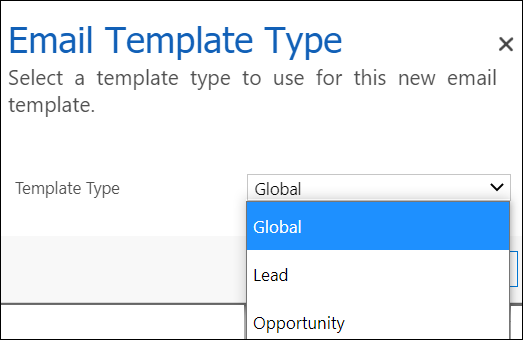
Working with Email Templates is very common and saves a lot of time especially if you have similar emails to send from CRM. The email templates are by default provided for some built-in entities that are listed when you create the template; however, when working with custom entities, it is not straight-forward and you have to do some additional work to make it done. To show you how to add custom entity fields in Email template content, I will create a new custom entity named Project and I will use some fields in order to build the email content In CRM Settings > Templates > Email Templates, create a new template and choose Global for Template Type In the Template screen, enter the Title of the template and the Subject of the email that will be sent To build the email content, ...

DYNAMICS 365 HOW TO DISABLE FIELDS AFTER RECORD CREATION - NO CODE SOLUTION

Image
Last day, I had a task that requires to disable some fields on the form after the record is created. As a developer, you might directly thought in JavaScript; but, there is an easier and faster way to do it with no code needed, Business Rules . In this post, we will see how to disable fields after the record creation using Business Rules Below are the needed steps to achieve this need Go to the specific entity and create a new business rule In the Condition element, choose a field that it will always be filled once the record is created (created on, modified on...) Add the condition if the chosen field Does Not Contain Data => record not yet created ( Modified On Does not contain data , Create On Does not contain data ...) In the True par...

DYNAMICS 365 OVERCOME SOLUTION DESCRIPTION LENGTH LIMITATION

Image
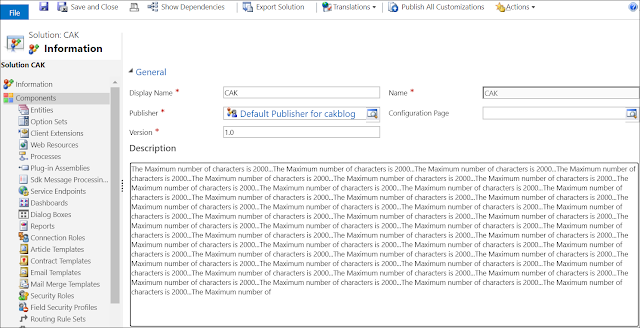
When working with D365 Solutions, you often use the Description field in order to keep track of your solution versions and the changes done through the project, by entering the appropriate details to each version and functionalities. However, and for big projects with many details entered in the Description field, you might encounter an issue which is the 2000 characters limit for the description field ; therefore, you will not be able to enter more details which lead to loss of tracking. In the Classic Interface, you won't be able to enter additional details In the PowerApps maker, you will get the error when you save that the length of the 'description' attribute of the 'solution' entity exceeded the maximum allowed length of '2000' . To overcome this limitation, you can use the OOB Configuration Page of the solution . The C...

DYNAMICS 365 HOW TO COPY PASTE BUSINESS RULES COMPONENTS

Image
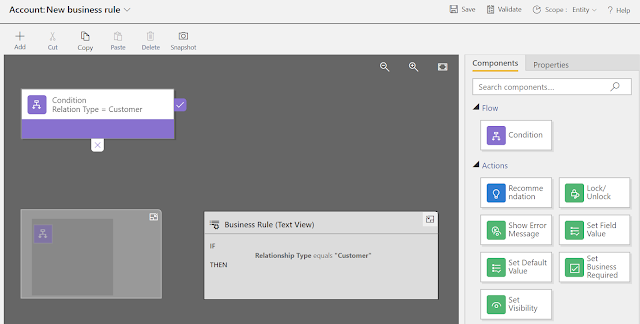
Last day, I was working with Business Rules and one of them was quite large and contains many conditions and actions. To speed up my creation of this business rule, I used the Copy/Paste components in Business Rules that exists out-of-the-box. So I decided to write a post about it and share my thoughts. For the sake of this post, I will create a new business rule against the Account entity. This business rule will show/hide fields and make them required based on the Relation Type field. Therefore, similar conditions and actions will exist in order to achieve this requirement. Let's start by setting the initial condition Next, in the right pane, Drag/Drop the components Set Visibility and Set Business Required to the True part of the condition and set t...