Posts

SAVE FORM IN DYNAMICS 365 JAVASCRIPT
Image
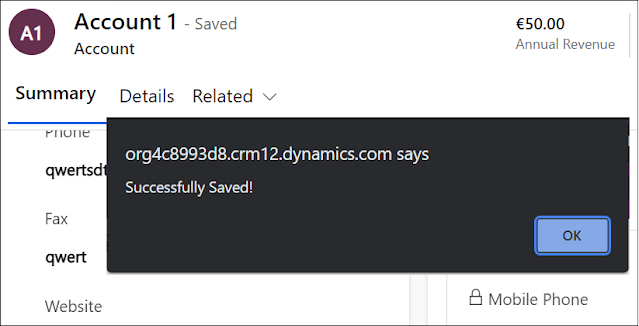
In Dynamics 365, you may need to save a CRM form automatically in JavaScript upon a specific action on the form. In order to do that, the function formContext.data.save(saveOptions).then(successCallback, errorCallback); can be used to save the record asynchronously with callback functions to be executed after the save operation is completed. The following example will display a successful message if the save operation is completed, and a failure message if not. formContext.data.save(1).then( function () { alert("Successfully Saved!"); }, function () { alert("Failed while saving!"); }); ...

CHANGE CONTROL LABEL DURING RUNTIME IN DYNAMICS 365 USING JAVASCRIPT

Image
In Dynamics 365, we might have to change CRM control label at runtime for specific needs. This can be easily done through JavaScript code by calling the function setLabel() that sets the label of the control. One function, several ways you can use to change the label based on the control type. Dynamically change a tab label Using the function setLabel , you can change a tab label during runtime as per the below code snippet. var runtimeTabLabel = "Runtime Tab Label"; formContext.ui.tabs.get("<tabName>").setLabel(runtimeTabLabel); Dynamically change section label Using the function setLabel , you can change a section label during r...

CHECKING DIRTY FIELDS IN DYNAMICS 365 USING JAVASCRIPT

Image
In Dynamics 365, there is a common need to identify which fields have been modified on the form during an update. One way is by creating a Plugin that will receive data of the modified fields in the current update event. However, the purpose of this article is to check how to identify the modified fields through JavaScript . It is done by verifying if the form or fields are in a dirty state which indicates if they have been changed. Three methods are available that you can use to get if the form or specific fields are dirty. Check if form is dirty to verify if any field on the form has been changed. Using the function getIsDirty , you can check if any field on the form has been modified. formContext.data.entity.getIsDirty(); ...

SET DYNAMICS 365 MULTISELECT OPTIONSET FIELD IN C#

As known, Multi-Select Option set field helps you select more than one option. Sometimes, you want to dynamically select one or more option in the multiselect field. In another post, we saw how to set a value of a multiselect option set field in JavaScript In this post, we will see how to set options of a multiselect option set field in C# The below code snippet can be used to add the needed options you want to set for the multi select option set field OptionSetValueCollection osvc = new OptionSetValueCollection(); osvc.Add(new OptionSetValue(<integerValueOptionSet>)); Once the needed options are added to the OptionSetValueCollection , you can add it to the list of attributes of...

SETSUBMITMODE IN DYNAMICS 365 JAVASCRIPT

Image
In Dynamics 365, there are some scenarios where you want to always submit or never submit the value of a column into the database. To do this, you have to use the JavaScript method setSubmitMode that will control whether the data for a column is submitted when a record is created or saved. In case you have a column that you are not interest to capture its data, use the never parameter for the setSubmitMode method. While, if you want to force a column value to be submitted whether it has changed or not, use the always parameter for the setSubmitMode method. Use one of the below three options for the setSubmitMode function as per the below. always : The data is always sent with a create/save event and can be captured within the entity attributes in a plugin function setSubmitModeField(context) { var formCont...

ACCESS FIELDS OF QUICK VIEW FORM THROUGH JAVASCRIPT IN DYNAMICS 365

Image
As known, quick view controls are associated to lookup fields that are included in a form and they are added to display specific information about the selected record in the lookup field. This will increase user experience where the users do not need to navigate to a different record to see the information needed. However, you might have requirements where you want to check a field value of the quick view form control in order to apply specific behavior on the main form. In this post, we will see how to access Quick View Form fields through JavaScript in Dynamics 365 . For the sake of this post, we will work with a contact quick view form control on the account form. Based on the primary contact Relationship Type field, a specific section on the account form will be displayed. Relationship Type field of the contact = Employee => Employee ...

FILTER LOOKUP IN DYNAMICS 365 BASED ON CONDITION IN JAVASCRIPT WITH ADDCUSTOMFILTER AND ADDPRESEARCH

Image
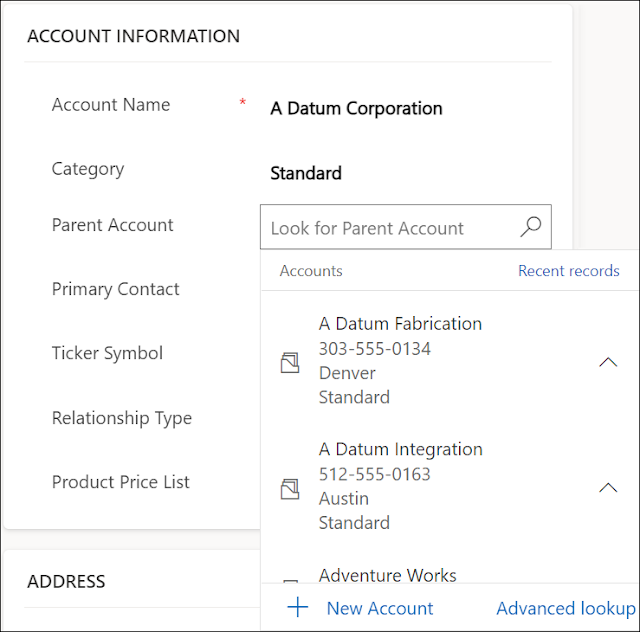
Working with lookups provide you many possibilities regarding filtering the records displayed in the lookup. You can do it by using the out of the box related records filtering in the lookup field properties, however and in some scenarios, this approach does not provide what you need. Therefore, writing JavaScript code is mandatory to achieve what you want, which is the topic of this post In other post, we saw how to filter lookup field in JavaScript using the function addCustomView In this post, we will see how to filter a lookup field in JavaScript using addPreSearch and addCustomFilter functions . For the sake of this post, we will filter the Parent Account lookup in the account form based on the category field ...

DISABLE SECURITY DEFAULTS FOR DYNAMICS 365 ENVIRONMENT

Image
When creating a Dynamics 365 Trial environment, each time you want to login, you will be promted by a security message. Security Defaults are a series of settings enabled by default on your Microsoft Office 365 account, to provide better security where every user is required to log in using Multi-Factor Authentication (MFA). To know more information about the Security Defaults, check Microsoft's documentation . In this post, we will see how to disable Security Defaults message when logging in . You can change the security defaults from Office 365 Admin center or from the Azure Portal Log into your Office 365 management area > Admin > Azure Active Directory or from the Azure portal > Azure Active Directory Under Azure Active Directory , click Properties and then Manage Security...

GET THE SIZE OF DYNAMICS 365 TABLES FOR ON PREMISES ORGANIZATION

Image
In previous post, we saw how to get the size of Dynamics 365 / Dataverse tables for an online environment In this post, we will see how to get the size of Dynamics 365 tables for an on premises organization . In order to check the tables size, you need to open the SQL server Management Studio and execute the below query In the Management Studio, click New Query or expand the Databases list and right click the needed database > New Query In the query editor, execute the below query by putting the correct database name USE <DatabaseName> GO SELECT t.Name AS TableName, s.Name ...

GET THE SIZE OF TABLES IN DYNAMICS 365 / DATAVERSE ENVIRONMENT

Image
Data size is continuously growing over the time. Thus, data storage and usage with the increasing complexity and new supported data types, is becoming an essential tool for the organizations to be able to expand their business. Therefore, knowing the data volume becomes very critical and in Dataverse, you are able to check the space reserved by each table. In this post, we will see how to get the size of Dynamics 365 / Dataverse tables for an environment . Using the Capacity page in the Power Platform Admin Center, you can get the size of each table (in MB). Login to Power Platform admin Center Under the Resources menu, click the Capacity option Select the Dataverse tab, or click on the Trial tab to check the environments ...

SELECT ALL OPTIONS OF MULTISELECT OPTION SET (CHOICES) FIELD IN DYNAMICS 365

Image
Multiselect or Choices field type has some limitations when working with them. One of these limitations is to select all the options by default. Since the multiselect fields cannot be used in business rules, therefore, you have to go with JavaScript to achieve this need. For this post, we will see how to select all options of a Multiselect / Choices field in Dynamics 365 . The below code snippet will get all the available options in the multiselect field and will select them all // Select all the options in the multiselection field on create form function setMultiselectDefaultValues(context) { var formContext = context.getFormContext(); if (formContext.ui.getFormType() === 1) { var options = formContext.getAttribute("cak_multiselectoptionfieldcode").getOptions(); // ...

DATA CENTER REGIONS FOR DYNAMICS 365

Image
The online version of Dynamics 365 is being hosted in datacenters that exist in many regions. Based on the country/region you selected during the sign-up, the datacenter will be chosen to store data for your environments. This selection will be reflected into the URL of your Dynamics 365 environment where you can guess the region from it. In this post, we will see the latest list of datacenter regions for Dynamics 365 Online with the URL for each region. Here is the list of the latest of Dynamics 365 Online data center regions # Region URL 1 North America (NAM) crm.dynamics.com 2 ...

CHANGE USER BUSINESS UNIT WITHOUT REMOVING SECURITY ROLES IN DYNAMICS 365

Image
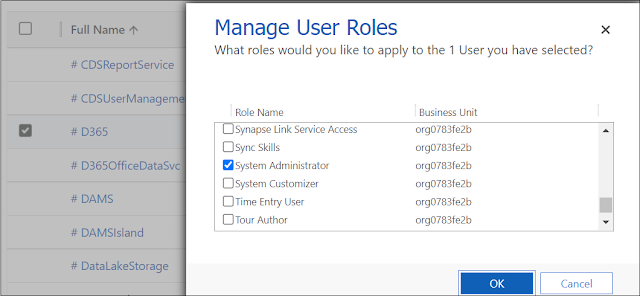
Since the first versions of the Dynamics 365 product, the business units, users, and security roles are directly linked together and form the base of the security model in the system, where every user must belong to one business unit and must have one or more security roles assigned to him. As you know, security roles are specific to each business unit, where a version of the security role of the root business unit will be replicated and inherited for every business unit in the hierarchy. In addition, changing a user business unit will remove all the security roles assigned to the user from the previous business unit, and you need to reassign them manually for the new business unit. Starting 2021 Release Wave 2 Updates, this behavior can be overridden and we can change the user business unit without removing the assigned security roles . ...

CREATE APPICATION USER FOR DYNAMICS 365

Image
In Dynamics 365, you can create an unlicensed user in your environment, it is called Application user . This type of user will have access to the data of your environment on behalf of the user who is using your application. However, each Azure Active Directory registered application, you can only create one application user. Previously, we were able to create this type of users from the Users area under the Settings > Security menu. Currently, it is done through the Power Platform Admin center In this post, we will see how to Create an Application User for Dynamics 365 . Below are the instructions to create an application user Log on to the Power Platform Admin center as a System Administrator Go to Environments , select the needed environment and open the Settings page ...

CALL JAVASCRIPT FUNCTION ON SUBGRID REFRESH IN DYNAMICS 365

Image
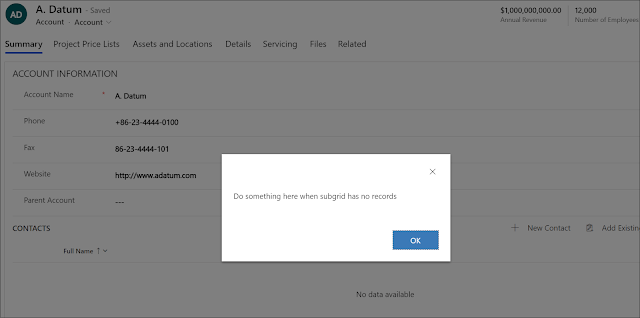
In this post, we will see an example on how to call JavaScript function when a subgrid is refreshed in Dynamics 365 . Sometimes, you have a scenario where you need to call a JavaScript function when a sub-grid refresh event has occurred in the form. The subgrid refresh event might happen if a record is added to the subgrid, deleted from the subgrid, or the refresh button of the subgrid is clicked. In order to trigger the function, you have to register a function on the OnLoad event of the form (in the below exemple manageFormBasedOnRecordsInSubgrid ) which in turns, will call the OnLoad event of the subgrid After doing this, each time you add/delete record from sub-grid, the function functionTriggerredgetOnSubgridRefresh() will be triggered. Below, is a sample code for the function that will ...